
How to Use Gemini Omni
Upload references, describe your vision, generate with Gemini Omni, and export — four steps to studio-ready video.
Upload Visual References
Drop in portraits, product shots, or storyboard frames. Gemini Omni locks onto facial geometry and object details so every generated frame stays true to your source material — even through dramatic camera moves.
Describe Your Vision
Write in plain language or use professional cinematography terms — Gemini Omni interprets both equally well. Specify style, color grade, pacing, and blocking; the model translates every detail into motion.
Generate with Gemini Omni
Gemini Omni produces continuous clips up to 10 seconds with built-in sound design. Synchronized Foley, ambient layers, and dialogue are generated alongside the visuals — no post-production audio pass required.
Export & Share
Download your finished video and export directly to your timeline or publish straight to YouTube, Instagram, or broadcast channels — ready for any platform.
How to Create Better Video Results with Gemini Omni
Practical prompt and editing tips for sharper motion, stronger consistency, and more cinematic Gemini Omni outputs.
Start Prompts with the Main Video Elements
Before adding advanced edits or effects, users should define the basic elements that shape the final video: shot framing, camera movement, style, lighting, location, and action. These details help Gemini Omni understand how the video should look, move, and feel from the beginning. A stronger request does not only say what appears in the scene; it also explains how the scene should be filmed, what mood it should create, and what should happen over time.
Describe Complex Actions Clearly for Gemini Omni
For advanced motion or transformation scenes, users should focus on the action and its visible result. Gemini Omni prompts should explain what triggers the change, how the environment responds, and what the final state should become. This works well for physical reactions, object transformations, material changes, motion effects, and scenes where one action should clearly cause another.
Add Storyboard and Consistency Rules for Gemini Omni
For videos with multiple beats, users should describe the sequence and preserve important details across the result. Gemini Omni prompts can include storyboard order, character consistency, clothing details, product design, object materials, environment layout, or visual style. This is useful for narrative clips, product stories, educational sequences, and planned creative videos.
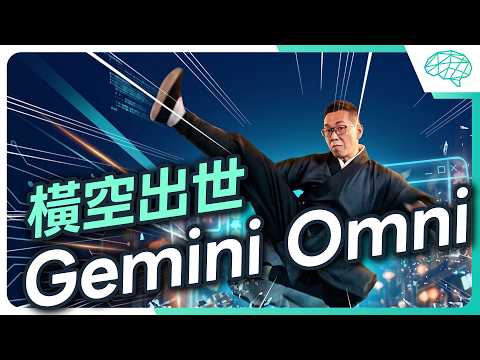
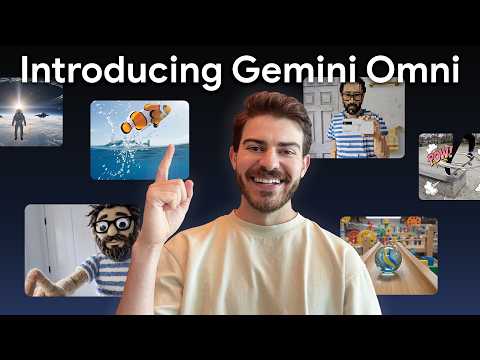
YouTube Videos about Gemini Omni
Anyvids Pricing Plans
Pricing you can trust
People want pricing they can trust. Anyvids keeps billing, credit usage, and refunds clear from start to finish.
Clear billing upfront
Subscription plans are straightforward—no hidden fees or surprise charges.
Clear credit usage
See the credit cost of every generation and review your usage history anytime.
Clear refund policy
If your purchase qualifies, refunds are processed within 3 business days.
Lite
$180.0
Access to limited video models
Access to limited image models
- 3600 Credits granted once per year (≈ 360 videos / 1800 images)
- Limited AI visual tools
- No watermark outputs
- No queue waiting
- Private video visibility
- 1 concurrent task
- Commercial license
- Normal support
Pro
$550.8
Access to all video models
Access to all image models
- 18000 Credits granted once per year (≈ 1800 videos / 9000 images)
- All AI visual tools
- No watermark outputs
- No queue waiting
- Private video visibility
- 3 concurrent tasks
- Commercial license
- Priority support
- 35% off every Credit Pack purchase
Premium
$1,438.8
Access to all video models
Access to all image models
- 60000 Credits granted once per year (≈ 6000 videos / 30000 images)
- All AI visual tools
- No watermark outputs
- No queue waiting
- Private video visibility
- 6 concurrent tasks
- Commercial license
- Priority support
- 50% off every Credit Pack purchase
FAQ
Answers to common questions about Gemini Omni on Anyvids AI.
AI VIDEO · GEMINI OMNI
Start creating with Gemini Omni
Experiment with the Gemini Omni video workflow and combine prompts, images, and video clips to create studio-ready content that matches your creative direction.
